作者: admin

  • uniapp开发微信小程序禁止分包代码打包到主包中

    uniapp 微信小程序 分包

    1,做好分包

    注意,写在”tabBar”中的路由只能加到主包中,其他页面推荐放到分包中,并且单个包不能大于2mb

    分包如下:

    修改pages.json

    实例:

    "subPackages": [{
        "root": "pagesB",  //文件夹名称,  根目录创建pagesB文件夹
        "pages": [
            {
                 "path" : "line_otem_detail/line_otem_detail", //不需要添加前缀/pagesB
                 "style" : {
                    "navigationBarTitleText": "确认订单"
                 }
           },
        ]
    }],
    

    避免主包引用分包内容:
    确保主包中不直接引用分包的组件、页面或模块。


    分包中的页面加载静态资源,需要放在根目录下,例如:


    图片引入路径

    <image src="/pages/sub/static/circuitCourt/mediationImage.png"></image>


    2,勾选“运行时是否压缩代码”

    勾选之后,再去点击“运行”–“运行到小程序模拟器”–“微信开发者工具”编译代码


    3,编辑manifest.json

    "mp-weixin": {
            "appid": "wxb89d3xxxx",
            "setting": {
                "urlCheck": true,
                "minified": true,
                "es6": true
            },
            "usingComponents": true,
            "optimization": {
                "subPackages": true  //重点加这个
            },
            "permission": {
                "scope.userLocation": {
                    "desc": "获取用户位置信息"
                }
            },
            "requiredPrivateInfos": ["chooseLocation", "getLocation"],
            "lazyCodeLoading": "requiredComponents"
    },


    4,预加载

    "preloadRule": {
            "pages/index/index": {  //进入首页,加载B包数据,不建议放在首页,首页加载慢
                "network": "all",
                "packages": ["pagesB"]  //也可以加载指定页面"packages": ["pages/account"]
            } 
    },


    5,考虑使用条件编译

    6,静态资源使用cdn或者压缩

    7,static 目录中的所有内容(包括图片)都会被编译到主包中,无论这些资源是否被使用,所以

    必要的、多页面复用的才放入到static目录中这样避免整包过大,将仅仅一个页面使用的放在自己所以在目录下,这样避免主包过大。
     

  • livekit在线语音视频消息

    语音 视频 消息 livekit 语音 视频 消息

    总体思路:livekit-server服务端、livekit-cli客户端生成token,部署环境必须在https上不然功能无法使用。

    环境Ubuntu 24.04 LTS,关闭防火墙

    关闭防火墙

    sudo ufw disable
    sudo ufw status


    1,下载livekit-server

    //创建livekit.yaml
    port: 7880
    rtc:
        udp_port: 7882
        tcp_port: 7881
        use_external_ip: true
        enable_loopback_candidate: false
    keys:
        APIbxDWetqcjHaa: RlZfytYLmdMOgV2u6fSFAbMhrYQok9B4aVWq48eIE1aa
    logging:
        json: false
        level: info


    后台运行
    nohup ./livekit-server --config ./livekit.yaml > log.log 2>&1 &
    
    跑成功会生这么一条日志
    INFO livekit service/server.go:243 starting LiveKit server {"portHttp": 7880, "nodeID": "ND_STFJwwWUeNLd", "nodeIP": "144.202.89.173", "version": "1.7.0", "rtc.portTCP": 7881, "rtc.portUDP": {"Start":7882,"End":0}}

    测试后端服务是否成功,http://外网:7880/ 页面显示OK表示成功


    2,下载livekit-cli客户端配置token

    ./livekit-cli create-token \
        --api-key 这里填livekit.yaml里面key值 --api-secret 这里填key的value值 \
        --join --room 房间名 --identity 用户名 \
        --valid-for 24h
    要进入同一个房间,房间名要一样,用户名必须唯一
    
    案例:
    ./livekit-cli create-token \
        --api-key APIbxDWetqcjHaa --api-secret RlZfytYLmdMOgV2u6fSFAbMhrYQok9B4aVWq48eIE1aa \
        --join --room my-first-room --identity user1 \
        --valid-for 24h

    还有简单的ui方法参考:https://docs.livekit.io/home/get-started/authentication/


    3,环境配置

    申请域名,为域名申请SSL证书,配置反向代理,保证访问https://xxx.com代理到http://外网:7880/中也显示ok。

    websocket地址为wss://xxx.com

    简陋的前端连接界面

    or

    支持视频和发消息的前端界面,node环境选择在20版本newMeet


  • js非模块改模块化

    js模块 js 模块


    在 ES6 模块中

    import MyPlugin from './myPlugin.js';
    
    const pluginInstance = new MyPlugin();
    pluginInstance.doSomething();


    在 CommonJS 中

    const MyPlugin = require('./myPlugin.js');
    
    const pluginInstance = new MyPlugin();
    pluginInstance.doSomething();


    在 AMD 中

    require(['myPlugin'], function (MyPlugin) {
      const pluginInstance = new MyPlugin();
      pluginInstance.doSomething();
    });


    在浏览器中

    <script src="path/to/myPlugin.js"></script>
    <script>
      const pluginInstance = new MyPlugin();
      pluginInstance.doSomething();
    </script>


    为了支持以上全部方式加载,封装成 umd模式

    // myPlugin.js
    
    (function (root, factory) {
      if (typeof define === 'function' && define.amd) {
        // AMD
        define([], factory);
      } else if (typeof module === 'object' && module.exports) {
        // CommonJS
        module.exports = factory();
      } else {
        // 全局变量
        root.MyPlugin = factory();
      }
    }(typeof self !== 'undefined' ? self : this, function () {
      
      var MyPlugin = {}
    
      return MyPlugin; //最后一定要return
    }));


    记住坑:

    1,保证全局模式你的插件名不冲突

    2,在AMD 或 CommonJS 环境中,保证你的依赖插件都已经加载


  • 解决There are multiple modules with names that only differ in casing.

    There are multiple modules with names that only differ in casing.
    This can lead to unexpected behavior when compiling on a filesystem with other case-semantic.
    Use equal casing. Compare these module identifiers:
    * C:\Users\Administrator\Desktop\vscode\第五周\Day17\day17\node_modules\vue-loader\index.js??ref--0!C:\Users\Administrator\Desktop\vscode\第五周\Day17\day17\src\components\SideBar.vue
        Used by 1 module(s), i. e.
        C:\Users\Administrator\Desktop\vscode\第五周\Day17\day17\node_modules\babel-loader\lib\index.js!C:\Users\Administrator\Desktop\vscode\第五周\Day17\day17\node_modules\vue-loader\lib\selector.js?type=script&index=0!C:\Users\Administrator\Desktop\vscode\第五周\Day17\day17\src\components\Home.vue


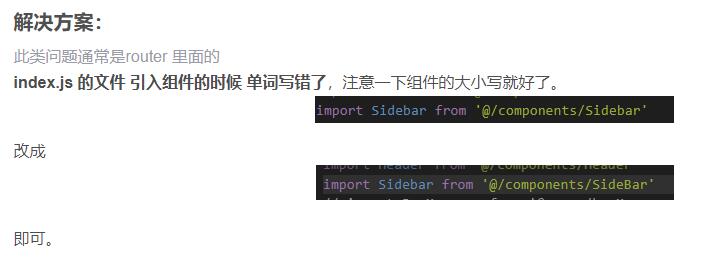
    解决:就是命名问题


  • uniapp下拉顶部刷新,下拉底部加载

    <scroll-view class="scroll-view scrollbox">
       <view class="item" v-for="(val,i) in data">
       </view>
    </scroll-view>
    
    
    export default {
            onLoad: function (options) {
                setTimeout(function () {
                    console.log('start pulldown');
                }, 1000);
                uni.startPullDownRefresh();
            },
            onPullDownRefresh() {
                
                //setTimeout(function () {
                    console.log('5m');
                    uni.stopPullDownRefresh();
                //}, 5000);
            },
            // 上拉加载
            onReachBottom() {
                console.log('上拉加载')
                // setTimeout(() => {
                // 	console.log('上拉加载停止')
                // 	uni.stopPullDownRefresh()
                // },5500)
            },
    }


    pages.json

    "pages": [
            {
                "path": "pages/index/index",
                "style": {
                    "navigationBarTitleText": "老年备忘录",
                    "enablePullDownRefresh": true, //需要新增
                    "onReachBottomDistance":50  //需要新增
                }
            }
        ],