import heic2any from 'heic2any';

const fileReader = new FileReader();
const fileReaderBuffer = new FileReader();

const file  // 图片文件

// 加载图片
function loadImg(img) {
  return new Promise((resolve, reject) => {
    img.onload = (e) => {
      resolve(e.target.result);
    };
    img.onerror = (e) => {
      reject(e);
    };
  });
}

// 压缩图片
fileReader.onload = async (e) => {
  const base64 = e.target.result;
  const img = new Image();
  let imgData = null;
  img.src = base64;
  img.filename = file.name;
  try {
    await loadImg(img);
    imgData = await compressImg(img);
    resolve(imgData);
  } catch (error) {
    console.error(error);
    resolve({
      file: null,
      url: ''
    });
  }
};

// 读取是否是heic格式图片
fileReaderBuffer.onload = async () => {
  const type = getFileType(fileReaderBuffer);
  if (type === 'unknown') {
    console.error('unknown image type');
    resolve({
      file: null,
      url: ''
    });
    return;
  }
  if (type.includes('/heic')) {
    heic2any({ blob: file, toType: 'image/jpeg' }).then((blob) => {
      fileReader.readAsDataURL(blob);
    }).catch(() => {
      resolve({
        file: null,
        url: ''
      });
    });
    return;
  }
  fileReader.readAsDataURL(file);
};

fileReaderBuffer.readAsArrayBuffer(file);
作者: admin
-
js处理heic(heif)格式的图片
-
this.$router.go(-1) 传参
前提:要支持keep-alive
编辑App.vue
<keep-alive>
   <router-view v-if="$route.meta.keepAlive" />
</keep-alive>
<router-view v-if="!$route.meta.keepAlive" />
页面路由设置keepAlive:true:
{
  path: 'task-list',
  component: (resolve) => require(['../page/wwg/task-list.vue'], resolve),
  meta: {
   keepAlive:true
  }
},
新建eventbus.js
import Vue from 'vue'

/**
* 定义空的vue实例,作为 eventbus实现非父子组件之间的通信(vue2.x中去掉了broadcast)
*/
var eventBus = new Vue({});
export default eventBus;
后退的页面
import eventBus from '../service/eventbus.js';

methods:{
 goback(hospital){
   eventBus.$emit('choiceHospital',hospital);
   this.$router.go(-1);
 }
}
获取参数页面
import eventBus from '../service/eventbus.js'; //每次激活时 activated(){ //activated只有启动keepalive才能出发 eventBus.$on('choiceHospital', function(data){ this.nearestOrg = data; }.bind(this)); }, -
vue 使用高德地图vue-amap组件
方法一:通用方法不用区分vue2和vue3
1,修改public/index.html,添加以下内容
<script type="text/javascript">
    window._AMapSecurityConfig = {
        securityJsCode:'填写你的安全码',
    }
</script>
<script src="https://webapi.amap.com/loader.js"></script>
2,创建MapContainer.vue组件,以下内容
<template>
  <div class="box">
    <div
        id="container"
        style="width:500px; height:300px"
    ></div>
  </div>
</template>

<script>

export default {
  mounted () {
    AMapLoader.load({ //首次调用 load
      key:'你的key',//首次load key为必填
      version:'1.4.5', //必须用1.4.x版本
      plugins:['AMap.Scale']
    }).then((AMap)=>{
      var map = new AMap.Map('container');
      map.addControl(new AMap.Scale())


      var options = {
        'showButton': true,//是否显示定位按钮
        'buttonPosition': 'LB',//定位按钮的位置
        /* LT LB RT RB */
        'buttonOffset': new AMap.Pixel(10, 20),//定位按钮距离对应角落的距离
        'showMarker': true,//是否显示定位点
        'markerOptions':{//自定义定位点样式,同Marker的Options
          'offset': new AMap.Pixel(-18, -36),
          'content':'<img src="https://a.amap.com/jsapi_demos/static/resource/img/user.png" style="width:36px;height:36px"/>'
        },
        'showCircle': true,//是否显示定位精度圈
        'circleOptions': {//定位精度圈的样式
          'strokeColor': '#0093FF',
          'noSelect': true,
          'strokeOpacity': 0.5,
          'strokeWeight': 1,
          'fillColor': '#02B0FF',
          'fillOpacity': 0.25
        }
      }
      AMap.plugin(["AMap.Geolocation"], function() {
        var geolocation = new AMap.Geolocation(options);
        map.addControl(geolocation);
        geolocation.getCurrentPosition()
      });


      AMap.plugin(['AMap.ToolBar'],
          function(){
            var toolopt = {
              offset :new AMap.Pixel(10,10),//相对于地图容器左上角的偏移量,正数代表向右下偏移。默认为AMap.Pixel(10,10)
              /*
               *控件停靠位置
               *LT:左上角;
               *RT:右上角;
               *LB:左下角;
               *RB:右下角;
               *默认位置:LT
               */
              position : 'LT',
              ruler : true,//标尺键盘是否可见,默认为true
              noIpLocate : false,//定位失败后,是否开启IP定位,默认为false
              locate : true,//是否显示定位按钮,默认为false
              liteStyle : false,//是否使用精简模式,默认为false
              direction : false,//方向键盘是否可见,默认为true
              autoPosition : true,//是否自动定位,即地图初始化加载完成后,是否自动定位的用户所在地,在支持HTML5的浏览器中有效,默认为false
              locationMarker : AMap.Marker({map: map}),
              /**
               *是否使用高德定位sdk用来辅助优化定位效果,默认:false.
               *仅供在使用了高德定位sdk的APP中,嵌入webview页面时使用
               *注:如果要使用辅助定位的功能,除了需要将useNative属性设置为true以外,
               *还需要调用高德定位idk中,AMapLocationClient类的startAssistantLocation()方法开启辅助H5定位功能;
               *不用时,可以调用stopAssistantLocation()方法停止辅助H5定位功能。具体用法可参考定位SDK的参考手册
               */
              useNative : false
            }
            var toolbar  = new AMap.ToolBar(toolopt);
            //toolbar.hide();//隐藏toolbar

            map.addControl(toolbar);
            //启动监听
            toolbar.on('location',function(){
              alert(toolbar.getLocation());
            })
          }
      );


      map.plugin(["AMap.OverView"],function(){
        var view = new AMap.OverView({
          tileLayer:new AMap.TileLayer({
            //显示的是google上显示的图层
            tileUrl:"http://mt{1,2,3,0}.google.cn/vt/lyrs=m@142&hl=zh-CN&gl=cn&x=[x]&y=[y]&z=[z]&s=Galil"//图块取图地址
          }),
          isOpen:true,
          visible:true
        });
        console.log(view.getTileLayer());
        map.addControl(view);
      });


      map.add(new AMap.Marker({
        position:map.getCenter()
      }));
    }).catch((e)=>{
      console.error(e);
    });

  },
  methods: {


  }
}
</script>
3,在你需要的地方引入
<MapContainer></MapContainer>

import MapContainer from "@/components/MapContainer.vue"

export default {
   name: "indexpage",
   components: {
      MapContainer
   }
}
修改高德切片地图/瓦片图
var key = 'xxxx' var xyzTileLayer = new AMap.TileLayer({ // 天地图底图图块取图地址 getTileUrl: `http://t{0,1,2,3,4,5,6,7}.tianditu.gov.cn/DataServer?T=vec_w&tk=${key}&x=[x]&y=[y]&l=[z]`, zIndex: 1 }) var wordTileLayer = new AMap.TileLayer({ // 天地图文字标注图块取图地址 getTileUrl: `http://t{0,1,2,3,4,5,6,7}.tianditu.gov.cn/DataServer?T=cva_w&tk=${key}&x=[x]&y=[y]&l=[z]`, zIndex: 2 }) var map = new AMap.Map('container', { // resizeEnable: true, // center: [120.18870707737302, 30.2356591501443], // zoom: 17, layers: [ xyzTileLayer, wordTileLayer ], });定位案例:https://sdeno.com/map.html
拖拽选中地址:https://sdeno.com/zp/map2.html
文档:
https://elemefe.github.io/vue-amap/#/zh-cn/introduction/install
https://www.wenjiangs.com/doc/mdxkhhtr
方法二:
npm install -S vue-amap
编辑 main.js
import VueAMap from 'vue-amap'; //注意不要和 AMap原始名称覆盖
Vue.use(VueAMap);
// 初始化vue-amap
VueAMap.initAMapApiLoader({
// 高德的key
key: 'you key',
// 插件集合
plugin: ['AMap.Autocomplete', 'AMap.PlaceSearch', 'AMap.Scale', 'AMap.OverView', 'AMap.ToolBar', 'AMap.MapType', 'AMap.PolyEditor', 'AMap.CircleEditor','AMap.Geolocation'],
v: '1.4.4'

});
demo1
map.vue文件
<template>
    <div class="_map">
        <div class="amap-page-container">
            <el-amap-search-box class="search-box" :search-option="searchOption" :on-search-result="onSearchResult" ></el-amap-search-box>
            <el-amap ref="map"  vid="amapDemo" :plugin="plugin"  :zoom="zoom" :center="center" class="amap-demo" :events="events">
                <el-amap-marker vid="component-marker" :position="makerConf.position" :content="makerConf.content"  ></el-amap-marker>
            </el-amap>
        </div>
        <div class="adrs">
            <ul>
                <li class="" v-for="(item,index) in list" :key="index" :class="currIndex == index ? 'active':''"  @click="select(item,index)">
                    <p class="address">{{item.address}}</p>
                    <p class="nm">{{item.name}}</p>
                </li>
            </ul>
        </div>
    </div>
</template>

<style>
    .amap-page-container{
        height: 300px;
        position: relative;
    }
    .search-box {
        position: absolute !important;
        top: 25px;
        left: 20px;
        z-index: 200 !important;
    }
    .amap-demo {
        height: 300px;
    }
    .amap-logo {
        display: none;
    }
    .amap-copyright {
        bottom:-100px;
        display: none;
    }
    .amap-scalecontrol{
        bottom: 4px !important;
    }
    .amap-geolocation-con{
        bottom: 30px !important;
        z-index: 199 !important;
    }
    ul li.active{
        color: deeppink;
    }
</style>

<script>


    export default {
        name: 'amap-page',
        components: {},
        data() {
            var me = this;
            me.city = me.city || '武汉';
            return {
                list:[],
                currIndex:0,
                zoom: 16,
                center: [114.397169, 30.50576],
                events:{
                    init: (o) => {
                        o.setCity(me.city,result => {
                            console.log("----------setCity",result);
                            if(result && result.length > 0){
                                me.zoom = 16;
                                me.makerConf.position = result;
                                me.getList(result);
                            }
                        });
                        //去掉logo
                        document.getElementsByClassName("amap-logo")[0].style.display = "none";
                    },
                    "dragend":function(e){
                        //console.log("dragging",e,this.getCenter());
                        var point = this.getCenter();
                        var pos = [point.lng,point.lat];
                        me.makerConf.position =  [point.lng,point.lat];
                        me.getList(pos);
                    }
                },
                makerConf: {
                    position:  [114.397169, 30.50576],
                    content:""
                },
                searchOption: {
                    city: me.city,
                    citylimit: true
                },
                plugin:[
                    'ToolBar',
                    'Scale',
                    {
                        pName: 'Geolocation',
                        events: {
                            init(o) {

                            },
                            complete:function(result){
                                //定位成功
                                var address = result.formattedAddress
                                var point = result.position;
                                var obj = {
                                    address:address,
                                    name:"",
                                    location:point
                                }
                                me.list = [obj];
                                me.makerConf.position =  [point.lng,point.lat];
                            },
                            error:function(){

                            }
                        }
                    }
                ]
            };
        },
        created(){
            var me = this;

        },
        mounted(){

        },
        methods: {
            select:function(item,index){
                var me = this;
                me.currIndex = index;
                var point = item.location;
                me.makerConf.position =  [point.lng,point.lat];
                me.center = [point.lng,point.lat];

            },
            //this.$refs.map.$getCenter()
            getList:function(result){
                //获取列表
                var me = this;
                me.$Geocoder({
                    lnglatXY:result,
                    success:function(res){
                        if(res.regeocode && res.regeocode.pois){
                            me.list = res.regeocode.pois;
                        }else{
                            me.list = [];
                        }
                    },
                    error:function(res){
                        me.list = [];
                    }
                });

            },
            onSearchResult(pois) {
                //搜索
                let latSum = 0;
                let lngSum = 0;
                var me = this;

                var mymap = me.$refs.map.$getInstance();

                if (pois && pois.length > 0) {

                    //如果长度为1则无需转化
                    var poi = pois[0];
                    var lng = poi["lng"];
                    var lat = poi["lat"];
                    me.center = [lng, lat];
                    me.makerConf.position  = [lng, lat];
                    //me.makerConf.content = poi.name;
                    me.list = pois;
                }else{
                    me.list = [];
                }
            },

            $Geocoder(options){
                //将坐标点转化为,详细地址
                options = options || {};
                if(AMap){
                    AMap.plugin(['AMap.Geocoder'], () => {
                        const geocoder = new AMap.Geocoder({
                            radius: options.radius || 1000,
                            extensions: options.extensions || "all"
                        })
                        var  lnglatXY = options.lnglatXY || [114.397169, 30.50576]; //已知点坐标
                        geocoder.getAddress(lnglatXY, function(status, result) {
                            if (status === 'complete' && result.info === 'OK') {
                                options.success && options.success(result);
                            }else{
                                options.error && options.error(status,result);
                            }
                        });
                    });

                }

            }
        },
        "watch":{
            list:function(){
                this.currIndex = 0;
            }
        }

    };

    /*
      me.$Geocoder({
                    lnglatXY:[center.lng, center.lat],
                    success:function(res){
                        console.log(res);
                    }
        });
     *
     * */
</script>
https://www.cnblogs.com/muamaker/p/9543453.html
demo2
//编辑main.js
import AMap from 'vue-amap'

Vue.use(AMap)
AMap.initAMapApiLoader({
  key: 'e5ea8ec2f20fb3d3e86b8a37a072923e',
  plugin: ['AMap.Autocomplete', 'AMap.PlaceSearch', 'AMap.Scale', 'AMap.OverView',
    'AMap.ToolBar', 'AMap.MapType', 'AMap.PolyEditor',
    'AMap.CircleEditor', 'AMap.Geolocation', 'AMap.Geocoder', AMap.Map],
  v: '1.4.15',
  uiVersion: '1.0'
})
随便一个页面
ssp-intoEvent
-
Windows10远程桌面连接提示:出现身份验证错误,要求的函数不受支持。。。
错误信息:
出现身份验证错误,要求的函数不受支持。。。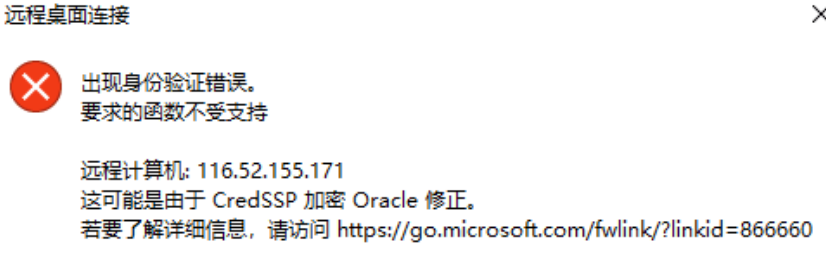
解决办法:
1、按Windows键+R,或者在CMD命令窗口,输入“运行”,打开运行窗口,
2、输入regedit,打开注册表编辑器,
3、找到路径:计算机\HKEY_LOCAL_MACHINE\SOFTWARE\Microsoft\Windows\CurrentVersion\Policies\System
然后在System文件夹内创建文件夹项:\CredSSP\Parameters
然后在Parameters文件夹内,新建 DWORD(32)位值(D),文件名为 AllowEncryptionOracle,值为2
-
vue倒计时
文件名:downTime.vue
<template>
  <div class="countDownClass">
<!--    <span>{{countDownText}}</span>-->
    <img style="height: 5vw" src="@/assets/imgs/icon/time_icon.png" />
    <span>
      <span>{{hhssmm.hou?hhssmm.hou:0}}</span>
      <span>时</span>
      <span>{{hhssmm.min?hhssmm.min:0}}</span>
      <span>分</span>
      <span>{{hhssmm.sec?hhssmm.sec:0}}秒</span>
    </span>

  </div>
</template>

<script>

import moment from 'moment'

export default {
  name: "CountDown",
  props: {
    startTime: {
      type: [Number, String],
      required: true,
    },
    endTime: {
      type: [Number, String],
      required: true,
    }
  },
  data() {
    return {
      countDownText: '',
      hhssmm:{},
    }
  },
  computed: {
  },
  async created() {
    this.updateState();
    this.timeInterval=setInterval(()=>{
      this.updateState()
    },1000)
  },
  updated(){
    if(this.end||this.done){
      clearInterval(this.timeInterval)
    }
  },
  methods: {

    /**
     * 时间小于10补零
     * */
    timeFormat(param) {
      return param < 10 ? "0" + param : param;
    },

    /**
     * 时间格式化HHmmss
     * */
    formateHHmmss(time){
      let day = parseInt(time /1000 / (60 * 60 * 24));
      let hou = parseInt((time  /1000 % (60 * 60 * 24)) / 3600) + day * 24;
      let min = parseInt(((time /1000  % (60 * 60 * 24)) % 3600) / 60);
      let sec = parseInt(((time /1000 % (60 * 60 * 24)) % 3600) % 60);
      let HHmmss = {
        hou: this.timeFormat(hou),
        min: this.timeFormat(min),
        sec: this.timeFormat(sec)
      };
      return HHmmss;
    },

    /**
     * 更新倒计时状态
     */
    updateState() {
      console.log(this.startTime);

      let starTime = new Date(moment(this.startTime).format("YYYY/MM/DD HH:mm:ss")).getTime();
      console.log(moment(this.startTime).format("YYYY/MM/DD HH:mm:ss"))
      let endTime = new Date(moment(this.endTime).format("YYYY/MM/DD HH:mm:ss")).getTime();
      var test = new Date(endTime);
      //console.log(test.getFullYear() + "-" + this.timeFormat(test.getMonth()) + "-" + this.timeFormat(test.getDate()) + " " + this.timeFormat(test.getHours()) + ":" + this.timeFormat(test.getMinutes()) + ":" + this.timeFormat(test.getSeconds()))
      let nowTime = new Date().getTime();
      let beginTime = starTime - nowTime;
      let finishTime = endTime - nowTime;
      let hhmmss = null;
      if (beginTime >= 0) {
        let hou = this.formateHHmmss(beginTime).hou;
        let min = this.formateHHmmss(beginTime).min;
        let sec = this.formateHHmmss(beginTime).sec;
        hhmmss = {
          hou: hou,
          min: min,
          sec: sec
        };
        this.hhssmm = hhmmss;
        this.start=true;
        this.countDownText="秒杀已开始";
      } else if (finishTime >= 0) {
        let hou = this.formateHHmmss(finishTime).hou;
        let min = this.formateHHmmss(finishTime).min;
        let sec = this.formateHHmmss(finishTime).sec;
        hhmmss = {
          hou: hou,
          min: min,
          sec: sec
        };
        this.hhssmm = hhmmss;
        this.countDownText=`距离活动结束`;
      } else {
        hhmmss = {
          hou: "00",
          min: "00",
          sec: "00"
        };
        this.end=true;
        this.countDownText="活动已结束";
      }
    }
  },
  beforeDestroy() {
    clearInterval(this.timeInterval)
  }
}
</script>

<style scoped>
/* 秒杀 */
.countDownClass {
  display: flex;
  align-items: center;
  flex-direction: row;
  margin: 0 0 0.1rem 0;
  color: #999999;
  font-size: 4vw;
}
.countDownClass > span:last-child {
  margin-left: 0.1rem;
}
.countDownClass > span:last-child span:nth-child(odd) {
  color: #999999;
  display: inline-block;
  border-radius: 0.1rem;
  padding: 0.05rem 0.05rem 0.05rem 0.05rem;
}
</style>
调用:
import downTime from '@/components/downTime'

export default {
   components: {downTime },
}


<downTime :startTime="'2012-11-11 11:11:11'" :endTime="'2022-11-11 11:11:11'"></downTime>