作者: admin

  • mac使用类似ubuntu的apt-get命令安装软件——brew

    用习惯了ubuntu对apt-get命令来安装软件已经很顺手。对于在入手mac来说没有类似这样的命令很不习惯这推荐使用brew全名homebrew。


    更改源:

    https://blog.csdn.net/woshikuangdage/article/details/81270545


    让local目录拥有everyone权限

    /usr/local
    sudo chown -R $(whoami) /usr/local
    或者
    sudo chown -R xgllseo /usr/local
    其中xgllseo为系统当前用户名。


    接着在命令中执行:

    /usr/bin/ruby -e "$(curl -fsSL https://raw.githubusercontent.com/Homebrew/install/master/install)"


    在安装过程中会不断的提示你几次输入mac密码,这很正常新手的我开始以为出错了。安装完成后会提示有


    ==> Installation successful!

    ==> Next steps


    说明安装成功了,之后就可以使用类似于这样的命令来安装软件了欧耶

    brew install node


    ---------------使用方法-------------------

    Homebrew的使用

    Homebrew的可执行命令是brew,其基本使用方法如下(以wget为例)。

    查找软件包
    brew search wget

    安装软件包
    brew install wget

    列出已安装的软件包
    brew list

    删除软件包
    brew remove wget

    查看软件包信息
    brew info wget

    列出软件包的依赖关系
    brew deps wget

    更新brew
    brew update

    列出过时的软件包(已安装但不是最新版本)
    brew outdated

    更新过时的软件包(全部或指定)
    brew upgrade 或 brew upgrade wget

  • mac环境变量设置

    1,添加变量环境路径有针对用户和全局的修改方法,这里使用修改全局方法来添加路径

    修改文件:

    /etc/paths

    往里面添加你想加的路径就行

    以上方法是修改是在对所有用户有效的。(基本一台私人电脑也就一个人自己在用,如果你一台电脑创建的是多个账号就不推荐使用以上方法添加环境变量)


    2,只针对当前登录的用户有效的环境变量:

    修改文件

    ~/.bash_profile

    修改案例:

    export PATH=/usr/local/Cellar/mongodb/3.2.11/bin:${PATH}}

    红色部分就是你要添加的路径

    立即生效就执行

    source ~/.bash_profile


    查看是否添加成功

    echo $PATH


    希望每次打开shell命令窗口都要执行某些代码时,编辑文件

    /etc/bashrc,在其最后一行加上你想执行的代码

    ——————————————

    分割线

    ——————————————

    1.系统级:
    (1)/etc/profile:该文件是用户登录时,操作系统定制用户环境时使用的第一个文件,应用于登录到系统的每一个用户。该文件一般是调用/etc/bash.bashrc文件。
    /etc/bash.bashrc:系统级的bashrc文件。
    (2)/etc/environment:在登录时操作系统使用的第二个文件,系统在读取你自己的profile前,设置环境文件的环境变量。

    2.用户级(这些文件处于家目录下):
    (1)~/.profile:每个用户都可使用该文件输入专用于自己使用的shell信息,当用户登录时,该文件仅仅执行一次!默认情况下,他设置一些环境变量,执行用户的.bashrc文件。这里是推荐放置个人设置的地方
    (2)~/.bashrc:该文件包含专用于你的bash shell的bash信息,当登录时以及每次打开新的shell时,该该文件被读取。不推荐放到这儿,因为每开一个shell,这个文件会读取一次,效率肯定有影响。
    ~/.bash_profile or ~./bash_login:这里没有引用作者的,下面会提到
    ~/.pam_environment:用户级的环境变量设置文件,没有做测试,不知道管不管用。

    通过上面的文件介绍,就能明白我们需要设置环境变量的时候,需要修改什么文件,要想对所有的用户生效,那就需要设置系统级的环境变量。反之,需要修改用户级的文件(最好是修改.profile文件,理由上面已经讲了)。

    另外,我使用的是Ubuntu10.04,之前在查找资料设置用户级环境变量的时候,有资料说要修改~.bash_profile文件,但是在ubuntu10.04系统中是没有该文件。经查找,在ubuntu官网[2]上找到了这个文件的说明:

    ~/.bash_profile or ~./bash_login – If one of these file exist, bash executes it rather then “~/.profile” when it is started as a login shell. (Bash will prefer “~/.bash_profile” to “~/.bash_login”). However, these files won’t influence a graphical session by default.

    意思应该是说当这个文件存在时,在登录shell时会读取./bash_profile文件,而不是.profile文件。我认为该文件实现的目的 跟.profile文件是一样的,当查找的资料中需要你修改.bash_profile文件,但却你没有该文件的时候,也可以修改.profile来完成 实现。

    http://www.cnblogs.com/mengyan/archive/2012/09/04/2669894.html

    http://www.cnblogs.com/shineqiujuan/p/4693404.html

  • mac类似于一件安装lamp环境—MAMP

    mac php mysql apache

    对于新手来说配置php环境坑多,也不像ubuntu那样拥有apt-get方法去安装,虽然也有brew类似的命令,但还是有各种错误提示。

    在mac中没必要分别学习php mysql apache因为真正上线需要的系统不可能是os,一般会是windows或者ubuntu


    官网:https://www.mamp.info/en/

    $pan点baidu点com/s/1qW27IPI 密码:65bt


    链接: https://pan.baidu.com/s/1cBX6mq 密码: ec13   记得改名字为:MAMP PRO.dmg

    SN: DED4-0A88-3A11-F9FDE
    SN: CB7E-F665-A199-E2E68

  • mac安装mysql

    首先下载:http://dev.mysql.com/downloads/mysql/

    选择dmg格式下载,安装一路next

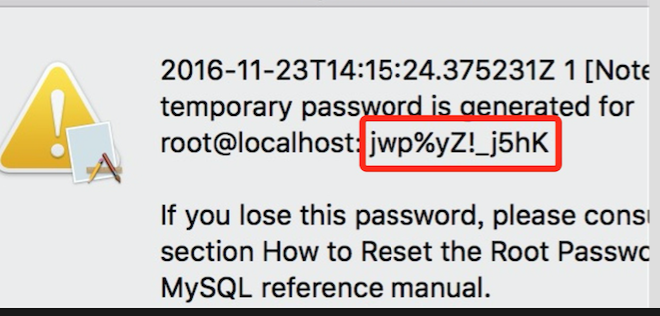
    在安装的过程中会提供随机的账号密码要记住啊

    QQ20161123-0@2x


    将/usr/local/mysql/bin添加到环境变量中

    vim /etc/paths
    在内容最后面添加 
    /usr/local/mysql/bin


    如果忘记了密码只能重新安装

    卸载方法:

    sudo rm /usr/local/mysql
    sudo rm -rf /usr/local/mysql*
    sudo rm -rf /Library/StartupItems/MySQLCOM
    sudo rm -rf /Library/PreferencePanes/My*
    rm -rf ~/Library/PreferencePanes/My*
    sudo rm -rf /Library/Receipts/mysql*
    sudo rm -rf /Library/Receipts/MySQL*
    sudo rm -rf /var/db/receipts/com.mysql.
    调用vim /etc/hostconfig,删除 MYSQLCOM=-YES-这一行。


  • 在nginx中配置SSL

    最近突然想把自己的博客弄成HTTPS,也不是为了加强安全,只是喜欢折腾,而且感觉加个绿色小锁酷酷的。
    HTTPS免费证书颁发机构有startSSL和letsencrypt,我使用的是letsencrypt。


    通过脚本安装certbot-auto:

    wget https://dl.eff.org/certbot-auto
    chmod a+x certbot-auto

    需要python版本是2.6的


    1. 创建配置文件

    /etc/letsencrypt/configs/wuyanxin.com.conf

    # the domain we want to get the cert for;
     # technically it's possible to have multiple of this lines, but it only worked
     # with one domain for me, another one only got one cert, so I would recommend
     # separate config files per domain.
     domains = wuyanxin.com 
     
     # increase key size
     rsa-key-size = 2048 # Or 4096
     
     # the current closed beta (as of 2015-Nov-07) is using this server
     server = https://acme-v01.api.letsencrypt.org/directory
     
     # this address will receive renewal reminders
     email = your-email
     
     # turn off the ncurses UI, we want this to be run as a cronjob
     text = True
     
     # authenticate by placing a file in the webroot (under .well-known/acme-challenge/)
     # and then letting LE fetch it
     authenticator = webroot
     webroot-path = /data/www/wuyanxin.com/


    2. 配置nginx,让Let’s Encrypt可以访问到临时文件

    加上这个location到你的nginx配置中

    server {
      listen 80 default_server;
      server_name wuyanxin.com;
     
      location /.well-known/acme-challenge {
         root /data/www/wuyanxin.com;
      }
     ...
     }

    验证配置,重启nginx

    sudo nginx -t && sudo nginx -s reload


    3. 请求证书

    ./certbot-auto --config /etc/letsencrypt/configs/wuyanxin.com.conf certonly


    4. 配置nginx 443端口指向证书

    server {
      listen 443 ssl default_server;
      server_name wuyanxin.com;
     
      ssl_certificate /etc/letsencrypt/live/wuyanxin.com/fullchain.pem;
      ssl_certificate_key /etc/letsencrypt/live/wuyanxin.com/privkey.pem;
     
     ...
     }

    配置http跳转到https

    server {
      listen 80;
      server_name wuyanxin.com;
      return 301 https://$server_name$request_uri;
     }

    重启Nginx

    sudo nginx -t && sudo nginx -s reload


    自动刷新证书
    Let’s encrypt 的证书有效期是90天,所以我们应该在过期之前刷新证书。

    准备如下脚本,保存到renew_letsencrypt.sh

    #!/bin/sh
      
      cd /opt/letsencrypt/
      ./certbot certonly --config /etc/letsencrypt/configs/my-domain.conf
      
      if [ $? -ne 0 ]
       then
              ERRORLOG=`tail /var/log/letsencrypt/letsencrypt.log`
              echo -e "The Let's Encrypt cert has not been renewed! \n \n" \
                       $ERRORLOG
       else
              nginx -s reload
      fi
      
      exit 0

    如果/var/log/letsencrypt/不存在就先创建
    允许crontab -e设置每两个月刷新一次

    0 0 1 JAN,MAR,MAY,JUL,SEP,NOV * /path/to/renew-letsencrypt.sh


     https://segmentfault.com/a/1190000007467737